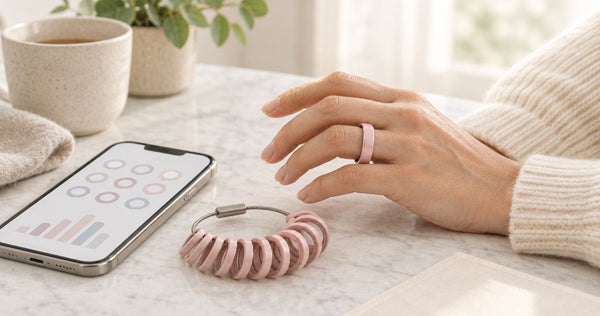
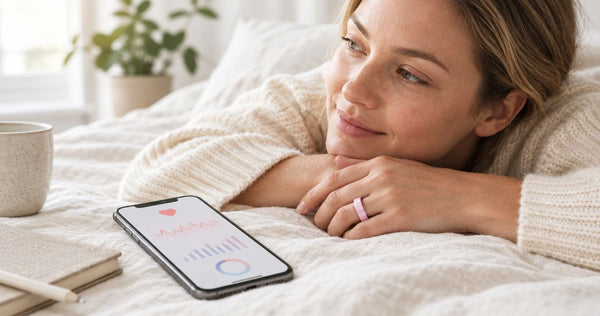
How to connect Odessa Ring to your iPhone

Instead of manually copying wellness readings into your phone, connect your Odessa Smart Ring through the free QRing app on your iPhone so you can review sleep and everyday activity in one place. The ring has no subscription and zero screens; your iPhone is where you view its estimated readings.
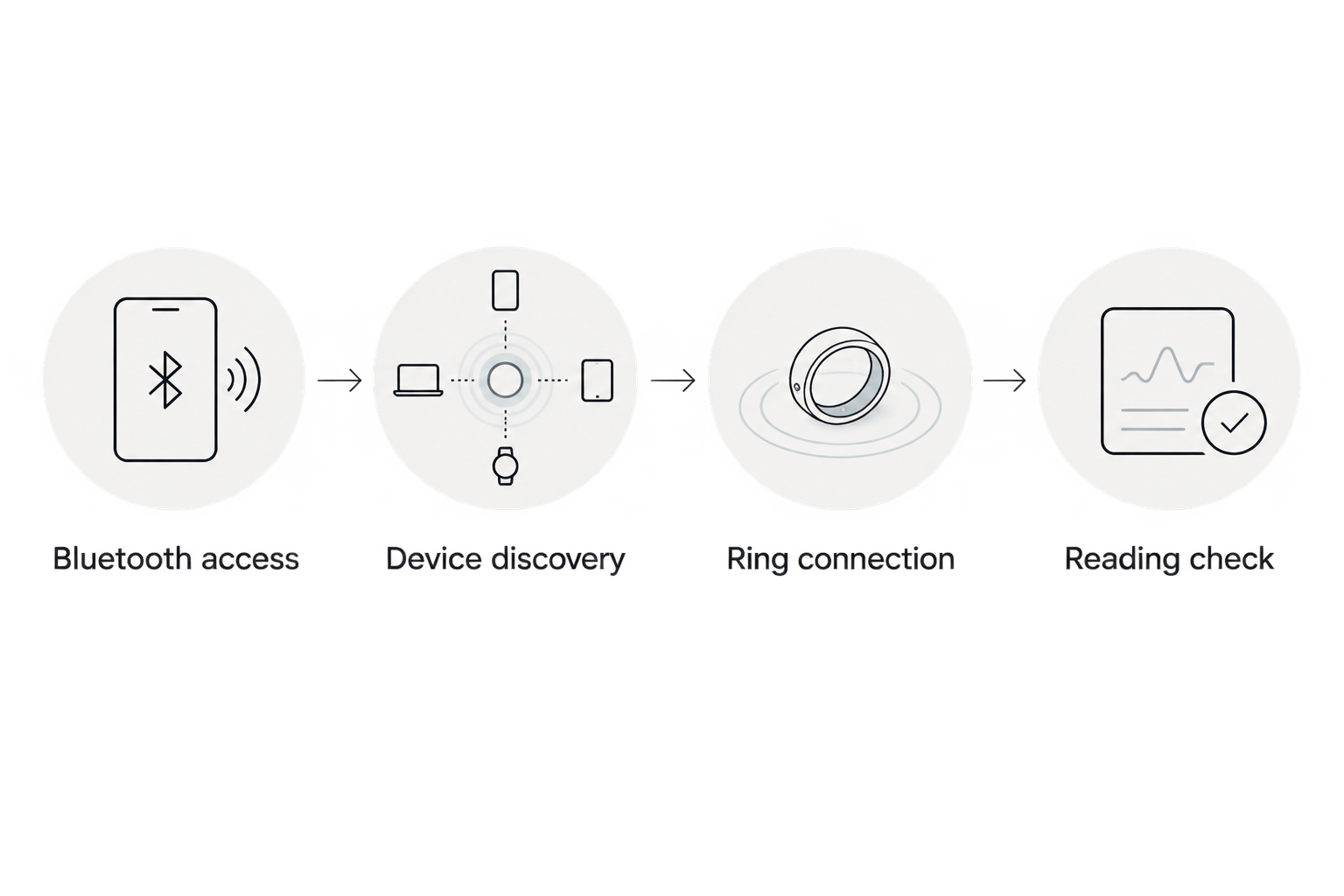
- To connect smart ring to iPhone, use QRing and allow Bluetooth access; Bluetooth settings alone do not complete app setup.
- Odessaring is best for women seeking subscription-free smart ring sleep insights, not medical monitoring.
- Check QRing compatibility on your own iPhone before setup; iPhone support does not guarantee every older phone qualifies.
- Treat QRing pairing and Apple Health sharing as separate checks; Apple Health compatibility is not established here.
Interactive · Metric explorer
Tap to explore what Odessa tracks

Sleep: how long and how well you slept, worked out from movement and heart rate overnight.
Heart rate: readings through the day and night from the optical sensor on the inside of the band.
HRV (heart rate variability): the variation between heartbeats, a signal many people watch for recovery trends.
SpO2: blood-oxygen estimates for general wellness, not medical use.
Stress: estimated from body signals such as HRV, so you can see calmer and busier stretches.
Skin temperature: changes against your own baseline over time.
Steps: steps, distance and calories, with sport modes for walking, running, cycling, swimming and more.
Cycle: log your cycle alongside the rest of your data to spot your own patterns.
What it doesn't do: it doesn't measure blood pressure, it doesn't detect snoring, and it doesn't diagnose, treat or prevent any condition. It's a wellness tracker, not a medical device.
Real product photo. Sensor positions are approximate. Battery: 5–7 days per charge. Free app, no subscription.
Why this matters
A Bluetooth connection and a working sleep-tracking workflow are different things. Setup is complete when QRing recognizes your ring and shows readings associated with it—not simply when Bluetooth is switched on.
Odessaring's subscription-free smart ring is best for women who want everyday sleep insights without another monthly membership. The trade-off is that you still depend on a compatible phone and app to review those insights. Screen-free does not mean app-free.
This 2026 guide separates the connection process from optional permissions, sleep checks and Apple Health questions. It does not assume that features offered by another smart ring also exist in QRing.
Before you start
- Have the ring, its included charging cable and your iPhone ready. Charge the ring before troubleshooting discovery. The client-confirmed battery specification is 5–7 days per charge; that is not a charging-time estimate.
- Confirm the correct app and current compatibility. Use the QRing download information supplied with your ring, then read its current App Store compatibility requirements on your iPhone. Install the app and complete any required introductory prompts.
- Check the permission that can stop setup midway: Bluetooth access. Your iPhone's Bluetooth switch and QRing's permission to use Bluetooth are separate controls. An app cannot communicate with a Bluetooth accessory when its required access is denied.
Keep other rings out of the immediate setup area. If you and a partner are setting up rings together, finish connecting and verifying one ring before starting the other; this makes it easier to identify which physical ring belongs to each app session.
iPhone and app preparation
Prepare the Bluetooth connection
- Open Settings, then Bluetooth, and turn Bluetooth on. Keep the ring beside the phone while you complete the initial setup rather than leaving it in another room.
- Open QRing from your iPhone. If iOS requests Bluetooth access, allow it so the app can communicate with the ring. Read any other permission request separately rather than accepting everything automatically.
- If you previously denied access, open Settings, then Privacy & Security, then Bluetooth. Enable QRing if it appears in that list, then return to the app.
- Complete the introductory information QRing requires. Enter personal information accurately where requested, and read the purpose of any optional permissions before deciding whether to grant them.
Expected result: QRing opens successfully, your iPhone has Bluetooth enabled, and the app has permission to communicate with Bluetooth accessories.
For your 2026 setup, use the requirements displayed in the current App Store listing rather than an old screenshot or an instruction written for another ring. A statement that an app supports iPhone does not identify its minimum supported iOS version.
Do not grant unrelated access merely to make a warning disappear. Bluetooth access supports the connection; other permissions need their own explanation. If a permission request is unclear, pause and read its description before continuing.
QRing device connection
Select and verify your ring
- Keep the charged ring close to your iPhone and open QRing's device-connection area. Follow the connection instructions supplied with the ring; in-app labels can differ between releases, so use the current screen rather than guessing from another app's instructions.
- Start device discovery within QRing. If several devices appear, identify your own ring before selecting one. Do not assume the first nearby Bluetooth device is yours, especially when another person is setting up a wearable beside you.
- Select the ring and complete the connection prompts. If iOS presents a Bluetooth pairing request during this process, confirm it only when it follows the connection you just initiated.
- Return to QRing's device information and wellness views. Confirm that the app identifies a connected ring and check whether readings begin appearing. Read any displayed date or update information before treating a value as current.
Expected result: QRing identifies your ring and can display information from it. A device name in the iPhone's Bluetooth list, by itself, is not the same verification.
Use QRing as the starting point for ring setup, not the iPhone Bluetooth list alone. Bluetooth settings control the phone's connection capability, while QRing provides the ring's wellness interface.
Do not repeatedly select nearby devices or reset the ring when the first attempt fails. First confirm charge, proximity and permission. Those checks preserve a clear troubleshooting sequence and avoid changing several things at once.
 Screen-free · No subscriptionOdessa Smart RingShop the ring →
First-night verification
Check fit, wear and the next morning's data
- Put the ring on a finger where it feels secure without pinching. Follow the supplied wearing instructions for its position. The published size range is US 6–14, but choosing a listed size does not establish that the fit is right for your finger.
- Check comfort during ordinary movement before wearing the ring overnight. A ring that rotates freely or feels painfully tight needs attention; do not treat discomfort as part of getting used to sleep tracking.
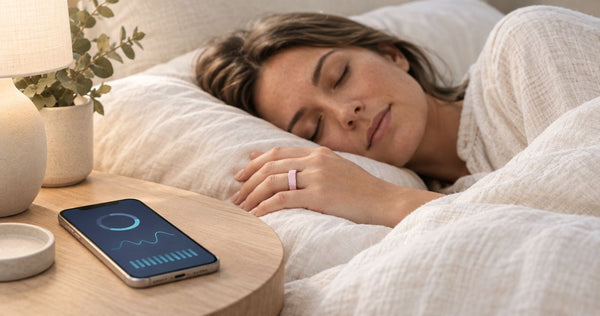
- Wear the ring for your normal night, then open QRing the next morning with the ring nearby. Let the app complete any visible connection or update activity before checking the sleep view.
- Look at the date attached to the sleep entry. Compare the broad estimated sleep period with what you remember, and distinguish a missing entry from an entry that simply estimates your sleep differently.
Expected result: You can find the relevant night's sleep estimate, or identify precisely which part of the workflow needs troubleshooting.
For a 2026 first-night check, the goal is successful collection and review—not a particular sleep score. Do not stay in bed longer or change your routine simply to make an app display a more appealing result.
The published product specifications checked October 25, 2026 list sleep, heart rate, stress, blood oxygen estimates, skin temperature and activity. They do not establish medical accuracy or guarantee that every measurement appears immediately after pairing.
Wellness readings are estimates and are not intended to diagnose, treat or monitor a medical condition. A successful connection proves that the app and ring communicate; it does not validate every estimate against a medical measurement.
Daily review and Apple Health checks
Reopen QRing after the initial setup
Once pairing works, make the next workflow a simple review rather than another setup session. Put the ring near your iPhone, open QRing and check the date of the information you want to read.
Keep these checks separate:
- Connection: Does QRing recognize the ring?
- Recency: Does the displayed entry belong to the day or night you intend to review?
- Interpretation: Is this an estimated wellness reading rather than a medical measurement?
This routine avoids a common mistake: interpreting an older value as evidence of what happened last night. It also gives you a clearer description of a problem if you need support.
There is no need to reinstall the app simply because you are opening it on a new morning. Start with the visible connection state and the date of the entry. Save disruptive troubleshooting for a persistent problem, and protect any existing information before changing the setup.
Treat Apple Health as a separate workflow
Connecting the ring to QRing does not establish Apple Health sharing. The supplied product facts confirm a free iPhone and Android app, not a specific Apple Health integration or a list of supported export categories.
For a 2026 Apple Health check, inspect the current QRing app for an explicit sharing option and read its description. If an integration is offered, verify what it sends and what authorization it requests before expecting entries in Apple's Health app.
The same distinction matters when using running apps with Apple Health: connecting a device to its companion app and authorizing data sharing are separate parts of a workflow. One completed connection does not prove the other exists.
Do not install an unrelated app or grant broad health-data access to force an unsupported connection. If Apple Health is essential to your purchase decision, get a current, specific confirmation before relying on it.
Troubleshooting your iPhone connection
QRing cannot find the ring
Check charge and keep the ring beside the iPhone. Confirm both Settings > Bluetooth and QRing's access under Settings > Privacy & Security > Bluetooth.
Then return to QRing and repeat device discovery. If several rings are nearby, isolate the one you intend to connect rather than repeatedly selecting unidentified devices.
Bluetooth is on, but QRing still lacks access
The phone-wide Bluetooth switch does not replace app permission. Review QRing's Bluetooth authorization in iOS settings, then reopen the app.
If QRing does not appear in the permission list, return to its connection workflow and watch for an access request. Do not interpret the absence of a permission entry as proof that the ring is defective.
The ring connects, but last night's sleep is missing
Check the selected date, charge and overnight wear before changing the pairing. A connection made this morning does not prove the ring recorded a usable sleep entry overnight.
Open QRing with the ring nearby and allow any visible update activity to finish. Avoid deleting the app as an opening troubleshooting step: first establish whether the problem is connection, missing data or the date being viewed.
QRing shows data, but Apple Health does not
Treat this as a sharing question, not evidence that Bluetooth pairing failed. First establish whether your current QRing version explicitly supports Apple Health and the particular data category you expect.
If the app offers sharing, review the relevant authorization and look for the expected entry in Health. If support is not established, do not promise yourself that another pairing attempt will add it.
Setup still fails after those checks
Contact support with your iPhone model, iOS version, QRing version and the exact point where setup stops. Include the wording of any error and describe whether the app finds the ring at all.
Do not send a password or an unrestricted collection of health screenshots. A focused description of the failed step is more useful than a large amount of unrelated personal information.
Customize your workflow
Keep the routine small: comfortable overnight wear, a charge plan and a dated morning review. The confirmed battery specification is 5–7 days per charge, so plan charging around your own use rather than assuming every charge lasts the same time.
Odessaring's subscription-free smart ring removes a recurring membership requirement, not the need to maintain its app connection. Its benefit is straightforward access to everyday estimates; its limitation is that those estimates still require cautious interpretation.
If fit is the obstacle, address it before collecting more nights. The client-confirmed return promise is 60 days with worn rings accepted, and the published product-page terms include free size exchanges within 60 days. Follow the current return or exchange instructions rather than tolerating a painful fit.
For your 2026 routine, choose one question to review—such as whether the recorded sleep period matches your recollection. Collecting more categories is not automatically more useful than understanding one clearly.
Frequently asked questions
How do I connect a smart ring to my iPhone?
For the Odessa Smart Ring, install QRing, enable Bluetooth, grant the app Bluetooth access and complete device discovery inside QRing. Verify the connection by checking the ring and its readings in the app.
Which app do I need for the Odessa Smart Ring?
The Odessa Smart Ring uses the free QRing app for iPhone and Android. Follow the download information supplied with the ring and check the current App Store compatibility requirements on your iPhone.
Do I need a subscription to see my ring's sleep data?
The Odessa Smart Ring has no subscription, and QRing is free. You still need a compatible phone and the app to review the ring's sleep and wellness estimates.
Why won't my iPhone find my smart ring?
Start by checking ring charge, nearby placement, the iPhone Bluetooth switch and QRing's Bluetooth permission. These are separate checks; Bluetooth being on does not prove the app has access.
Does connecting QRing automatically connect Apple Health?
No—QRing pairing does not establish Apple Health sharing. Check whether your current app explicitly offers that integration and supports the particular data category you want to share.
Should sleep data appear immediately after pairing?
Pairing alone does not establish an overnight sleep record. Wear the ring comfortably overnight, then check the relevant date in QRing after the app finishes any visible update activity.
Can I use the ring to monitor a medical condition?
No. The ring's wellness readings are estimates and are not intended to diagnose, treat or monitor a medical condition; consult a qualified clinician about symptoms or medical concerns.
One last thing
Keep a brief note of the first successful connection: the phone you used, the app version and where you found the ring's readings. That gives you a practical reference if a future app update changes the layout—without turning your sleep routine into another technical project.